Apple Dictation on Mac: how to use it and when an app helps

Dictation is built into macOS. It turns speech to text wherever you can type, and for a short message it is often all you need.
This page shows how to turn Apple Dictation on and use it, what Apple says it does, and when a separate dictation app is worth adding. We make Cluinn, which is one of those apps, so read that part with this in mind. What is said here about Apple Dictation comes from Apple’s own guide and privacy page, read on 9 October 2026.
How to turn on Dictation on a Mac
- Open the Apple menu and choose System Settings.
- Click Keyboard in the sidebar. You may need to scroll down.
- Go to Dictation and turn it on. If you are asked, click Enable.
In the same place you can choose your languages, the microphone and the shortcut that starts dictation.
These steps follow Apple’s guide for the current macOS. Older versions of macOS name some of these settings differently.
How to use it
- Click where you want the text to go.
- Start dictating. There are three ways:
- Press the microphone key, if your keyboard has one.
- Use the Dictation shortcut you chose.
- Choose Edit → Start Dictation in the menu bar.
- Speak.
- When you are done, press the Escape key, the microphone key or the Dictation shortcut.
What Apple Dictation does
Apple’s guide lists these:
- It adds commas, periods and question marks for you as you speak, in supported languages. You can turn this off.
- It follows spoken commands such as “new line” and “new paragraph”.
- It inserts an emoji when you say its name, such as “heart emoji”.
- If you set up more than one language, you can switch between them as you dictate.
- On a Mac with Apple silicon, you can keep typing while you dictate.
- You can dictate text of any length, and it stops by itself when it hears no speech for 30 seconds.
Where your voice goes
Apple’s privacy page says it depends on your Mac. When your Mac’s settings say that Dictation is processed on the device, your audio and transcripts are not sent to Apple. Otherwise, what you dictate is sent to Apple’s servers to be processed, and it is not stored unless you have chosen to share audio to improve Siri and Dictation. The page adds that some other details, such as the names of your contacts, may be sent too, to help recognize what you say.
You can check which applies to you in System Settings → Keyboard, under Dictation.
What Cluinn adds
Apple’s guide describes Dictation as speaking to enter text, with punctuation added for you. Some people want more than that, which is where separate dictation apps come in. We make one of them, Cluinn, so this part is about our own app. It adds three things.
Clean-up. Filler words and false starts are removed and punctuation is added, so what lands is text you can send.
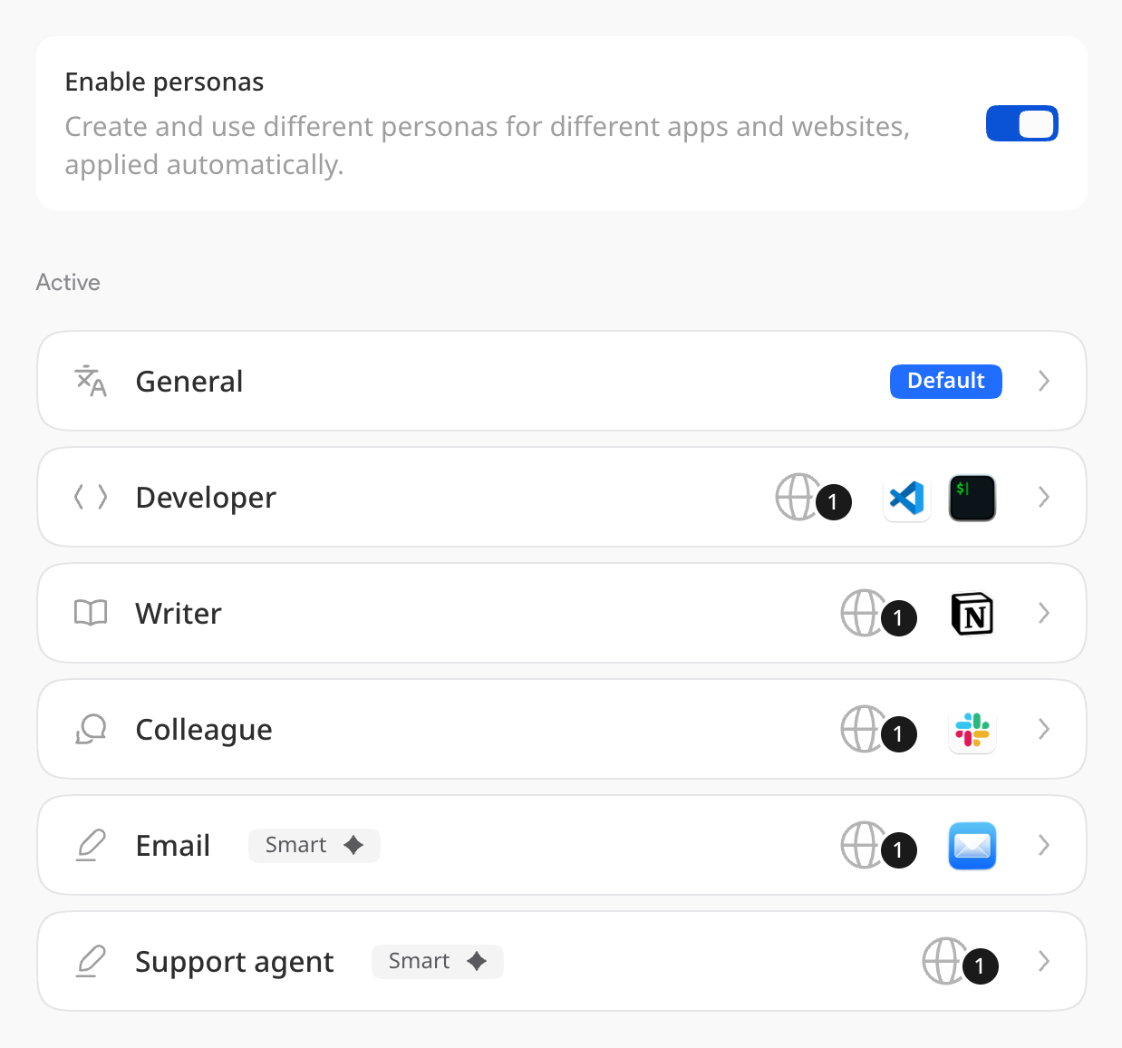
A writing voice for each app. A persona sets the tone and style, and each one can claim apps and websites. You can be terse in the terminal and warmer in email without changing anything.
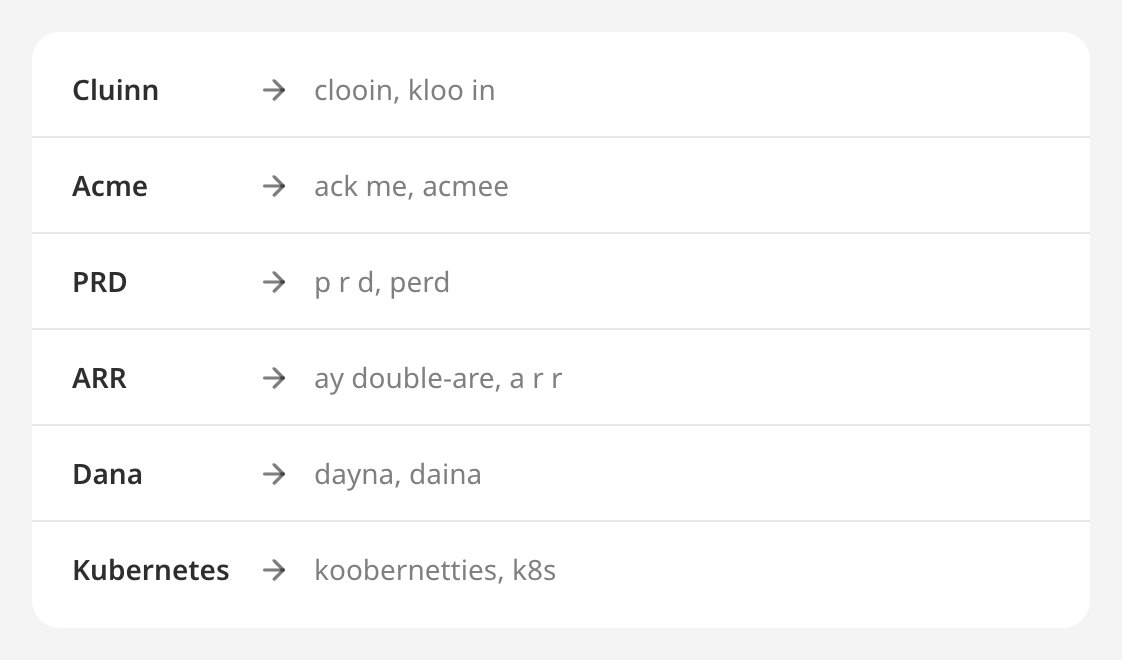
Your own words. Add names, product terms and acronyms to the Dictionary, and they are spelled your way from then on.
It can also turn a short spoken trigger into a longer saved text, and type what you say in another language. Each dictation is saved to a Dictations page on your Mac, and new installs clear them after 90 days unless you change that.
Where your voice goes with Cluinn. Cluinn transcribes on your own Mac wherever it can: on a recent Apple silicon Mac with an active plan, your speech becomes text on the machine itself, with no external speech model and no audio uploaded. During a trial, or any time Cluinn can’t run the on-device model, the audio is sent to our servers to be turned into text and discarded straight after. The clean-up is done on our servers, so it needs a connection. If you turn on Smart translation, a picture of the window you are typing into is sent to our servers once per recording, to recognize its language, and it is not stored.
Side by side
| Apple Dictation | Cluinn | |
|---|---|---|
| Where it comes from | Built into macOS | A separate app, on a paid plan after a free trial |
| How you start | The microphone key, a shortcut or the Edit menu | A hotkey, ⌘⇧Space unless you change it |
| Punctuation | Commas, periods and question marks, in supported languages | Added as part of the clean-up |
| When it stops | When you stop it, or after 30 seconds without speech | When you stop it. One dictation has a maximum length |
Which one to use
Stay with Apple Dictation if you dictate short things now and then. It is already on your Mac, and there is nothing to install or pay for.
A separate app is worth trying if you dictate whole emails and documents and then spend time fixing them, if your names and terms keep coming out wrong, or if you want to speak one language and have it typed in another.
If you try Cluinn, know its limits first. It runs only on Macs with Apple silicon (M1 or later), on macOS 12 or later, and there is no Windows or phone app. There is no free plan: there is a free trial, and you add a card to start it. You need to be signed in.
If that sounds like a fit, you can download Cluinn for Mac.
Sources
Checked on 9 October 2026.