Accessibility For when typing is the hard part.
Speak, and finished text lands wherever your cursor already is.
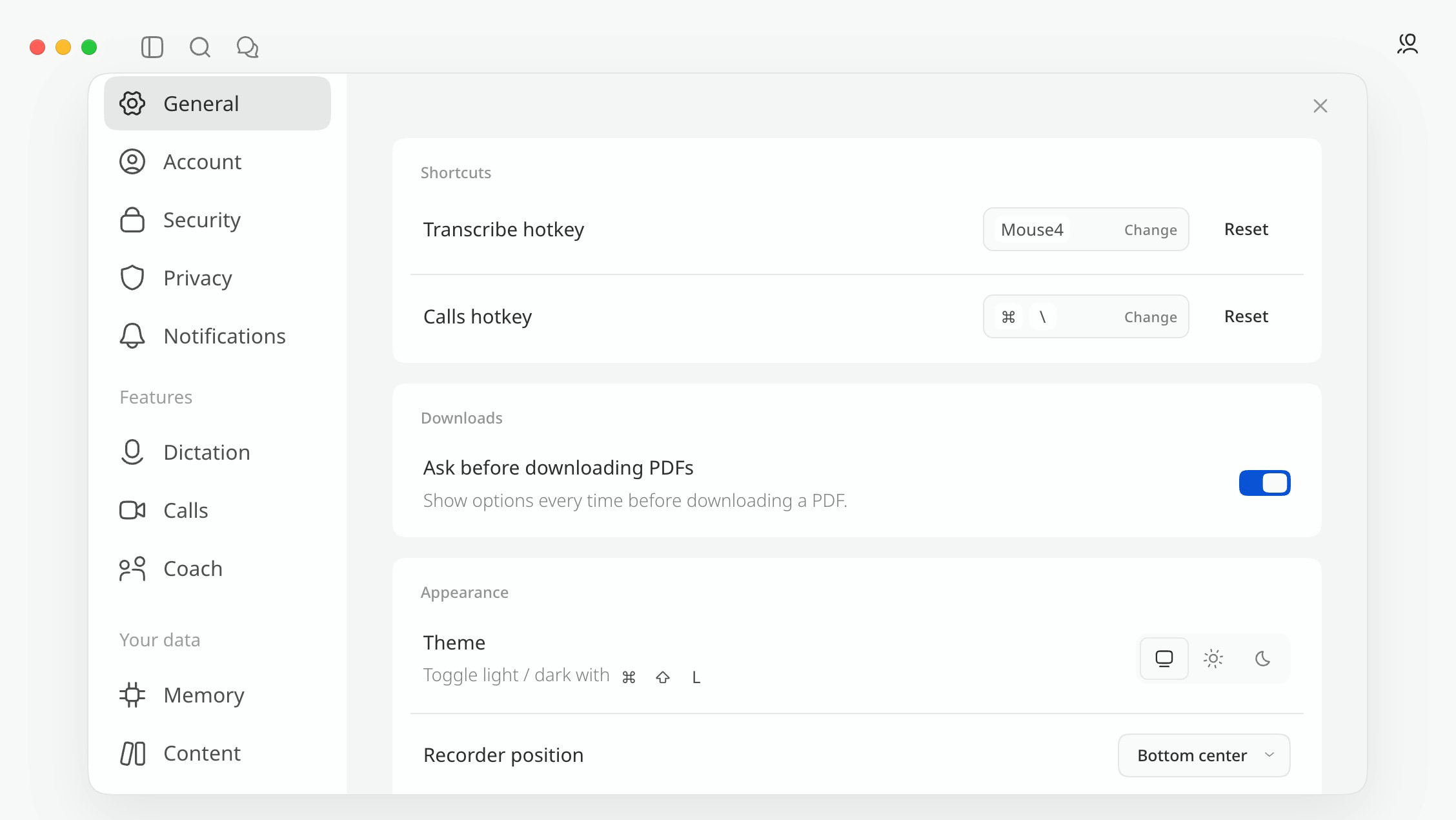
Start it with a mouse button.
The trigger doesn’t have to be a key combination. Set it to one of the side buttons on a five-button mouse and dictation starts with a single press. Press it again to stop, or Esc to throw the recording away.
A whole paragraph, pasted in one go.
Snippets turn one short spoken trigger into up to 10,000 characters: a signature, an address, a reply you send every day. It’s pasted exactly as you saved it, never reworded.
Teach it a word once.
If it keeps mishearing a name, a place or a piece of jargon, add the word and how it sounds. From then on it’s spelled your way, so you’re not correcting the same thing by hand.
What it doesn’t do
Cluinn types text. It does not control your Mac: there are no voice commands, so you still place the cursor, switch apps and click Send yourself. A single recording has a time limit, so long pieces come in stretches. It runs on Apple silicon Macs with macOS 12 or later, and it isn’t an offline tool: you need to be signed in, and the clean-up that turns what you said into finished text runs on our servers even on the Macs where the transcription itself doesn’t. If you need to operate your Mac entirely by voice, Cluinn isn’t the right tool.
Common questions
Can I use my Mac completely hands-free?
No. Cluinn turns speech into text at your cursor; it has no voice commands, so opening apps, moving the cursor and clicking still happen the usual way. macOS has its own Voice Control for that, and the two are separate.
What can I set the trigger to?
A keyboard shortcut or one of your mouse’s side buttons, whichever is easier to reach. Press to start, press again to stop, Esc to cancel.
How long can I speak for?
Each recording has a time limit; the current figure is in the fair-use section of our Terms. If you reach it, the recording closes cleanly and everything you said up to that point is transcribed. Nothing is lost, and you carry on in a new one.
Does my voice get sent anywhere?
Cluinn transcribes on your own Mac wherever it can: on a recent Apple silicon Mac with an active plan, your speech becomes text on the machine itself, with no external speech model and no audio uploaded. During a trial, or any time Cluinn can’t run the on-device model, the audio is sent to our servers to be turned into text and discarded straight after.
Does it need to see my screen?
Setup asks for all three (Accessibility, Microphone and Screen Recording) before the app opens. Plain dictation only uses the first two: Screen Recording is there for Calls and for translating into the language on your screen, and if you do neither, nothing is ever captured. You can switch it off afterwards in System Settings → Privacy & Security and dictation keeps working. On macOS 15 and later it’s listed as Screen & System Audio Recording.